
1
Access the Administration Panel.
Click the Administration area to open the controlled company-level configuration tools.


Create and manage the company-level hierarchy used to group roles into recognised titles or grade levels. This structure helps provide clarity around seniority, pay scales, career progression and the organisation's internal framework.

Titles & Grade Levels is a Super Admin feature. Company-level titles should only be created or changed by a Presto Super Administrator or with support from your Customer Success Partner. If your organisation needs a new title or grade level, contact one of these authorised users.
Titles group roles into levels and provide an organisational reference for seniority, compensation structures and career progression.
The Titles feature allows you to create and manage the internal grade level structure of your company. Titles serve to group roles into levels, helping to identify pay scales and seniority within the organization. This hierarchical structure does not necessarily reflect the skill or competency level of the employees but rather their position within the company's framework. By organizing roles into titles, you can more effectively manage career progression, compensation strategies, and organizational hierarchy.
The original guided walkthrough is retained below. Follow each step to access Administration, open the Titles panel, add a new title and save the configuration.
Click the Administration area to open the controlled company-level configuration tools.
From Company Setup, select the Titles panel to view and maintain the organisation's company-level title and grade structure.

Use the Add Title action when the required company-level title or grade does not already exist.
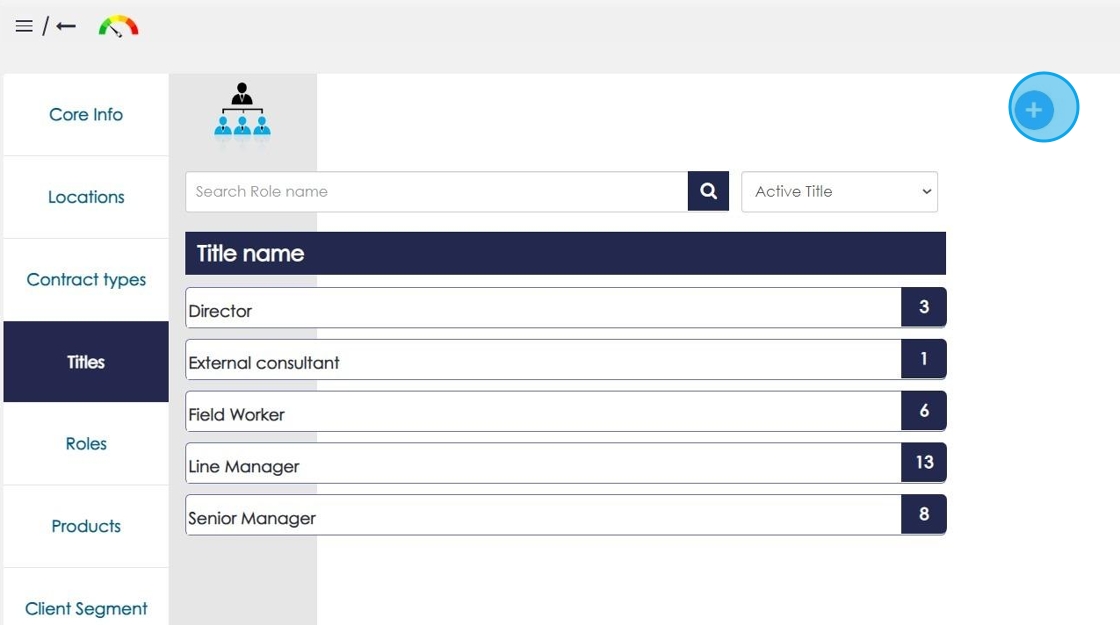
Add the required title or grade-level name and save the record so it becomes available within the organisation's company-level structure.

The new Title or Grade Level has now been added to the controlled company configuration.
Once your company-level title structure is in place, continue through Company Setup to configure the Roles used across the organisation.